Managing Classroom Screen Time with Progress Learning: Balances & Best Practices
Written by Dr. Sandra Markowitz and Adriana Lazaro, Enterprise Customer Success Managers with Progress Learning.
Dr. Sandra Markowitz is an experienced educator with 17 years in the field of Instructional Technology. Passionate about assistive technology, Universal Design for Learning, instructional strategies, and workflow solutions, Sandra brings innovative approaches to her teaching.
Prior to Progress Learning, Adriana Lazaro was a preschool teacher for six years and worked in literacy research at the University of South Florida. She has earned a Master’s degree in Early Childhood Development and is passionate about supporting educators and helping students succeed.
As school districts across the country balance screen time with offline instruction and practice, educators face a new challenge: how can we balance individual screen time and the rigorous, standards-aligned preparation students need for high-stakes testing that technology can help provide?
At Progress Learning, we believe mastering state standards and balancing screen time can go hand in hand. You don’t need every student accessing their device all the time to deliver high-quality, DOK Level 2 and 3 instruction. Here are eight practical, highly collaborative ways to leverage Progress Learning’s resources in your classroom while keeping student devices closed.
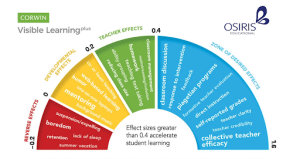
To ensure we use strategies that deliver real results, we look to John Hattie’s Visible Learning research. Hattie analyzed millions of student outcomes to pinpoint what works best, setting an effect size of 0.40 as the “hinge point” for high-impact learning.
Whole-Group & Gamified Strategies
Think or Swim Group Gameplay
- The Setup: Project our Jeopardy-style Think or Swim game on your main display with student devices closed. Divide the class into small groups and equip each table with a dry-erase board.
- The Impact: Students engage in discourse to solve rigorous questions together, writing their answers on the whiteboard rather than staring at individual screens.
- John Hattie Effect Size: Classroom Discussion (Effect Size: 0.82)
Projector Mode & Daily Bell Ringers
- The Setup: Display individual questions or use our built-in Bell Ringers (found in the platform) directly onto your board.
- The Impact: Perfect for targeted review on previously missed standards. Use this format to drive whole-class conversations around academic vocabulary, error analysis, and test-taking strategies.
- John Hattie Effect Size: Feedback (0.70–0.73) & Teacher Clarity (0.75)
Vetted Instructional Video Streaming
- The Setup: Stream our teacher-created instructional videos (located in the Instructional Resources tab) on your central display.
- The Impact: Created and vetted by our in-house team of educators, these videos deliver core concepts to the entire room at once, eliminating the need for individual video streaming.
- John Hattie Effect Size: Direct Instruction (0.60) & Scaffolding (0.82)
Kinesthetic & Station-Based Strategies
“Building Thinking Classrooms” Gallery Walks
- The Setup: Print targeted DOK 2 and 3 questions and post them around the room.
- The Impact: Gets students standing, moving, and talking. Groups rotate from prompt to prompt, fostering the collaborative problem-solving environment popularized by the Building Thinking Classrooms model.
- John Hattie Effect Size: Collective Problem Solving & Deliberate Practice (0.79)
Printable Worksheets with Self-Correction Stations
- The Setup: Print skill worksheets alongside their answer keys (available in the Resources tab). Place the answer keys at a dedicated station in the room.
- The Impact: During small-group time, students complete paper practice and visit the self-correction station to check their work independently, building metacognition without logging into a portal.
- John Hattie Effect Size: Assessment-Capable Learners (1.44) & Metacognition
Projected Study Plan Rotation
- The Setup: Log into a demo account using “Student View” and project the Study Plan onto your board during small-group station rotations.
- The Impact: One station can be a group gathering at the main board to work through standards-based questions collaboratively, keeping the focus on peer discussion rather than individual screens.
- John Hattie Effect Size: Small Group Instruction (0.47) & Formative Assessment (0.48)
Projected Item Analysis
- The Setup: Log in to your account and click on the results report for an assessment you want to review with the whole group. Make sure to hide student responses.
- The Impact: Click on a question that shows half or more than half of the students choosing the wrong answer. Review with the class why they chose that answer and the misconceptions they might have about the questions. Many times we focus on the right answer, but talking about the wrong answer is also a great learning tool.
- John Hattie Effect Size: Conceptual Change Programs (1.16) & Feedback (0.70)
Whole Group Assessments
- The Setup: You can project any custom assessment you created on the screen.
- The Impact: Have students work through a question a day projected on the screen, either using whiteboards or playing four corners. Try to make this interactive. At the end of the week, assign the assessment for a data point and check for understanding
- John Hattie Effect Size: Classroom Discussion (0.82) & Practice Testing (0.54)
Balancing screen time doesn’t mean lowering the bar for test readiness. By turning platform content into shared, interactive experiences, you can align with your district’s screen-time policies while embedding Hattie’s top learning strategies into daily practice.